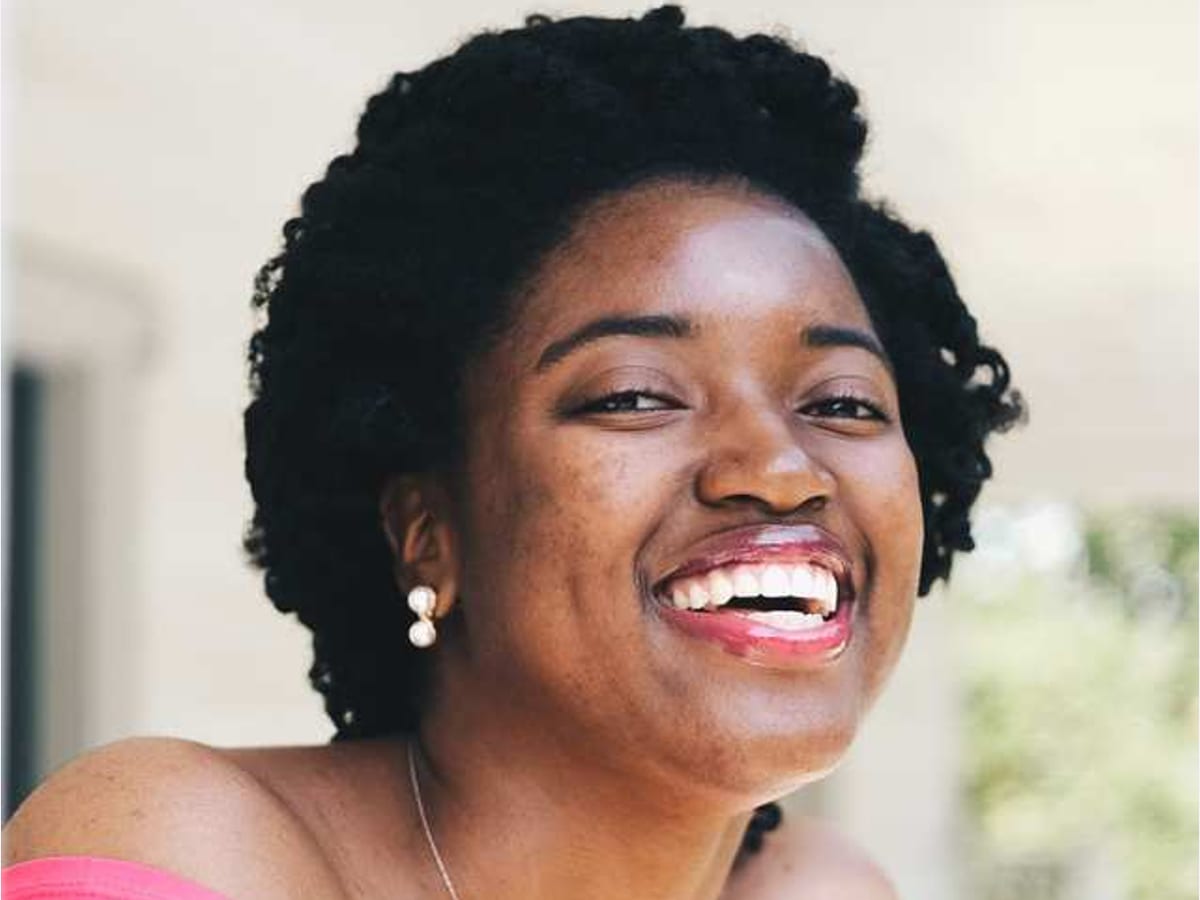
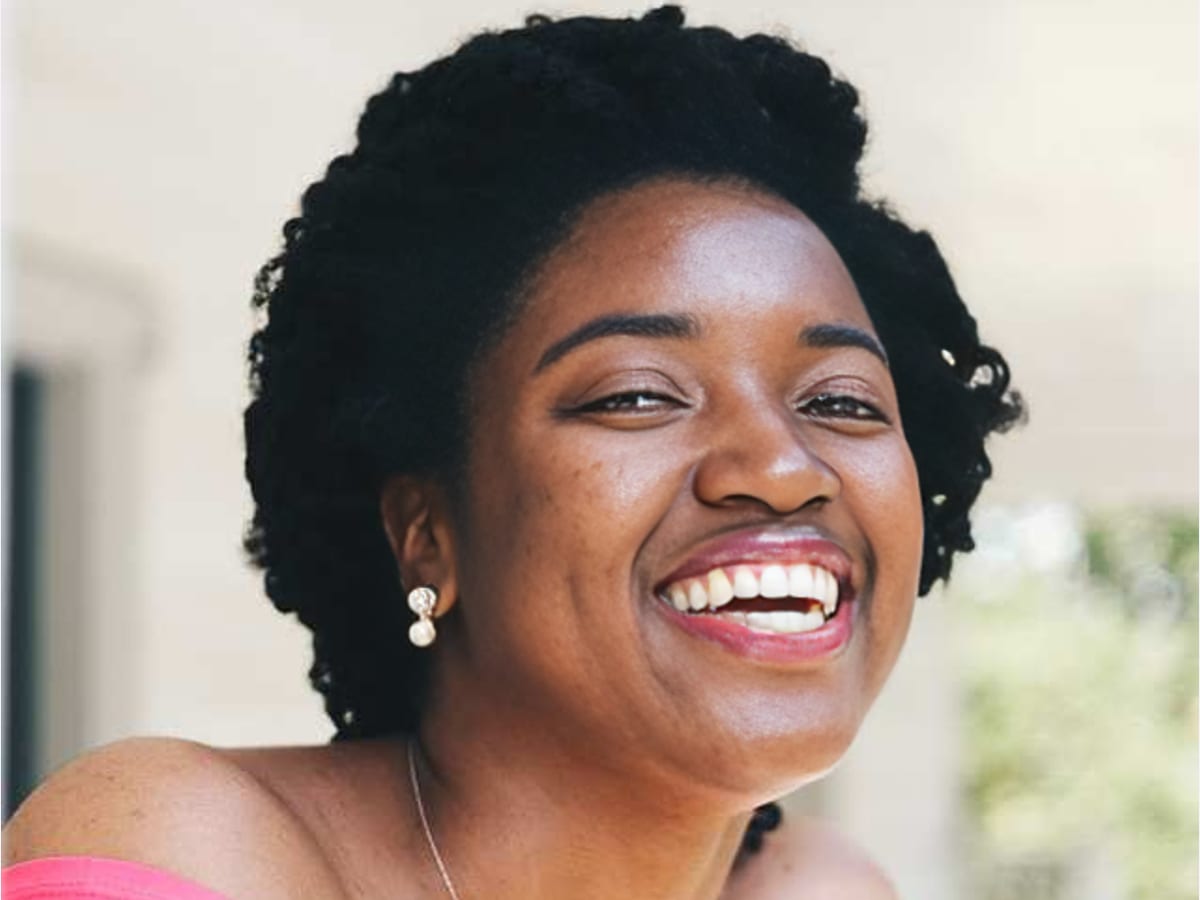
Face Restore AI that rebuilds a face without swapping it for a nicer one.
A face that has been shrunk, compressed, and forwarded a dozen times loses the detail that made it that person. Face Restore rebuilds it from what is left, at the size you uploaded, and leaves the rest of the photo alone.
First result free, full resolution·No account needed
Quick verification to keep processing fast for everyone.
Best for
For a face that got small and stayed small.
Use Face Restore on a color photograph where the face has gone soft or blocky but the picture is otherwise fine. For a black-and-white print, or any photo with physical damage, Restore is the right tool — see below for why this one is not.
A photo saved from a messaging app at a fraction of its original size
A group shot where one face is too small to read
An old digital snapshot from a phone or camera with a low-resolution sensor
Cost and commitment
Your first result is free, full resolution, no account needed.
5 signup credits after account creation.
Uploads are processed for your result and not used for training.
1.Upload the color photo with the face you want rebuilt.
2.Wait for the pass to finish. Most images take under a minute.
3.Compare the face against another photo of the same person.
A photograph that has passed through a messaging app is not the photograph you took. Each app resizes it, compresses it, and often does both again when it is forwarded. The result is a file that still looks acceptable at thumbnail size and falls apart the moment you look at a face in it.
The damage is specific. Compression works by discarding fine variation and keeping broad shapes, which is exactly the wrong trade for a face. Eyelashes, the edge of an iris, the texture of skin, the line where lips meet — these are small, low-contrast details, and they are the first thing thrown away. What survives is a smooth mask with the right general shape and none of the specifics that make it a particular person.
This is why sharpening does not fix it. Sharpening increases the contrast of edges that are still in the file. When the detail has been discarded rather than blurred, there is no edge left to raise. You get a crisper version of the same smooth mask.
Rebuilt, not recovered — and the difference matters
Face Restore does not find the missing detail. It cannot; the detail is gone. What it does is generate detail that is consistent with what remains, using a model that has seen a very large number of faces and knows how they are put together.
That is a real distinction and it is worth being clear-eyed about. The result is a plausible face that matches the shape, proportions, expression, and lighting of the one you uploaded. It is not a photograph of what the person's face looked like at that moment. It is the model's best account of it.
In practice, on a photo that is merely small or compressed, that account is very close. Enough structure survives to constrain the model tightly, and the output reads as the same person because it is being led by the same underlying shape. The further the source degrades, the more the model is filling in rather than following, and the less you should trust the specifics.
Why this runs cautiously by default
The model behind this tool has a dial that trades likeness against smoothness. Turned one way it produces a cleaner, more attractive face that drifts from the person. Turned the other it stays closer to the original and accepts a rougher, less impressive result.
It is set well towards likeness here, and deliberately. The most common failure in this category is a face that looks great and belongs to someone else, and it is a failure people do not notice, because a smoother face is flattering and there is nothing in the image announcing that it is wrong.
The visible cost of that choice is that results look less dramatic than the marketing images you may have seen elsewhere. Some texture stays. Some softness stays. That is the setting doing its job.
The photo comes back the same size
This tool changes faces and nothing else. The background is left exactly as it was, and the image comes back at the resolution you uploaded rather than enlarged.
There is one exception, and it is a property of the model rather than a choice: an image smaller than 512 pixels on its long edge is normalized up to 512. Anything at or above that size is returned at its original dimensions.
The reason to hold it there is that a tool which quietly enlarged your photo would be two tools wearing one name, and you would have no way to tell which part of the change came from which. If you want a bigger file as well, run Upscale afterwards, which enhances faces as part of its own pass.
Why black-and-white photos are sent elsewhere
This is the limitation worth knowing before you upload anything, and it is the reason this tool is described as being for color photographs.
The model was trained on color faces, and it reconstructs in color. Given a monochrome print, it does not stay monochrome — it assigns skin tone and, more troublingly, eye color. Eye color cannot be derived from a black-and-white photograph. The information is not in the negative. Testing this tool on a sepia portrait produced a technically better image of a person with blue-grey eyes that nobody can verify.
For a monochrome print, Restore repairs the damage and handles color as an acknowledged inference rather than a silent one, and Colorize exists for the color question on its own. Sending old prints there is not a smaller version of this tool; it is a different and more honest treatment of the problem.
Reading the result before you keep it
Compare it against another photograph of the same person, ideally one taken around the same time. This is the only check that means anything, and it takes a few seconds.
Look at the things a model is most likely to standardise: the shape and thickness of eyebrows, the exact line of the nose, the set of the mouth at rest, and any asymmetry. Real faces are asymmetric, and a face that has become tidier is a face that has moved away from the person.
Skin is the second thing to check. Marks, lines, and pores that were visible in the source should still be visible. If the skin has become uniform, the result has been smoothed rather than restored, and it will look wrong to anyone who knew them.
If you cannot verify the face against anything, treat the output as an illustration rather than a record, and say so if you pass it on.
Getting the most out of a bad source
Start from the largest copy you can find. People reach for this tool on a photo pulled from a chat thread when the original is still on a phone, in an email, or on a memory card. The original will always give a better result, because the model has more structure to follow.
Do not sharpen, denoise, or adjust the photo first. Those steps alter the evidence the model reads, and a pre-sharpened face gives it exaggerated edges to build on. Run this first, then apply other tools if the result still needs them.
Crop as little as possible. The model locates faces in the frame, and a very tight crop can leave it with too little context to work from.
If several people are in the shot, all of their faces are processed in the same pass. There is no way to select one, so check every face in the result, not only the one you came for.
The first result is free and needs no account. That is deliberate for this tool in particular, because whether the output is convincing depends heavily on your specific photo, and no description of the trade-offs substitutes for looking at your own.
Results download at full resolution with no watermark. Uploads are processed to produce your result and are not used for training.
FAQ
Common questions
How many credits does Face Restore use?
Face Restore costs 2 credits per image. Your first result is free and does not need an account.
Will it still look like the person?
On a photo that is merely small or compressed, yes — enough structure survives to keep the model close to the original. The setting used here favors likeness over smoothness for exactly this reason. On a badly degraded source it can drift, so compare the result against another photo of them before you rely on it.
Can I use this on a black-and-white photo?
It is not recommended. The model reconstructs in color and will assign skin tone and eye color that cannot be known from a monochrome photograph. Use Restore for an old print, or Colorize if adding color is what you actually want.
Does it make the image bigger?
No. The photo comes back at the resolution you uploaded. The one exception is that an image under 512 pixels on its long edge is normalized up to 512, which is a property of the model. For a larger file, run Upscale afterwards.
What is the difference between this and Sharpen?
Sharpen raises the contrast of detail that is still present in the file. This tool is for when the detail has been discarded rather than blurred, which is what compression does, and there is no longer an edge to raise. If the face looks soft but complete, try Sharpen first.
Does it change the background?
No. Background enhancement is switched off, so everything outside the faces is returned untouched. If the whole image needs work, run this first and then another tool.
What happens with more than one face in the photo?
Every face in the frame is processed in the same pass. You cannot select one. Check all of them in the result, because a face in the background has less detail to work from and is the most likely to drift.
Will it remove wrinkles or blemishes?
It should not, and if it has, the result has been over-smoothed. Marks and lines that were visible in your source should still be visible. This tool is set to rebuild detail, not to retouch someone.
Can I use the result as proof of what someone looked like?
No. The output is reconstructed rather than recovered, so it is the model's account of the face and not a record of it. Treat it as an illustration, and say so if you pass it on to anyone.